Everyday users
You need to crop a photo, correct its orientation, improve its appearance, or prepare it for sharing.
A focused editor turns a basic image into a cleaner, more useful version without requiring advanced design knowledge.
Plain-language guide
What is image editor app software? It is a tool for changing, arranging, improving, or preparing visual files. The right choice depends on the kind of change you need, the image you have, and how much control the result requires.
Clear up confusion
An image editor app is useful, but it is not automatically a complete design studio, a photo archive, or a magic repair system. These related guides help separate similar tools and use cases.
Practical fit
At its core, an image editor app gives you an interface for making controlled visual changes. It may work with photos, illustrations, screenshots, social graphics, or other supported image files.
You need to crop a photo, correct its orientation, improve its appearance, or prepare it for sharing.
A focused editor turns a basic image into a cleaner, more useful version without requiring advanced design knowledge.
You are preparing thumbnails, posts, banners, or simple visual assets with consistent proportions and readable composition.
Repeatable edits make everyday publishing faster and reduce avoidable layout mistakes.
Several people need quick visual corrections without learning a large professional design suite.
A simpler workflow keeps routine edits understandable and easier to hand off.
You want to understand basic editing concepts before committing to a complex desktop workflow.
A smaller set of controls provides a practical starting point for learning how visual changes affect the final image.
Basic workflow
Most editing sessions follow a simple sequence. The exact controls vary between products, but the decisions remain broadly similar.
Open or import the image you want to change, then check its orientation, dimensions, and visible quality before making adjustments.
Use the relevant tools for cropping, resizing, color correction, cleanup, text, or other changes instead of altering everything at once.
Compare the edited version with the original, check edges and text for errors, and confirm that the result suits its intended destination.
Export or save a version that preserves the quality and file type needed for sharing, publishing, printing, or later editing.
Boundary conditions
A useful editor is defined as much by its boundaries as by its controls. Knowing what it cannot reliably do helps you choose a safer workflow.
Sharpening or enhancement may improve the appearance of a soft image, but it cannot guarantee recovery of information that was never captured.
What to do instead
Keep the original file and use the highest-quality source available.
Editing one image does not create brand rules, reusable layouts, typography decisions, or a consistent content process.
What to do instead
Use templates, documented styles, and a separate design workflow when consistency matters.
Features, export options, performance, and compatibility can differ between apps, browsers, operating systems, and image formats.
What to do instead
Check supported inputs and outputs before building a workflow around a particular tool.
An app can apply a change accurately while still producing an unsuitable crop, misleading alteration, unreadable text, or poor contrast.
What to do instead
Inspect the final image at its intended size and ask whether the edit still represents the subject honestly.
A simple example
The difference between an original and an edited image is often practical rather than dramatic: better framing, clearer emphasis, and a version suited to its destination.

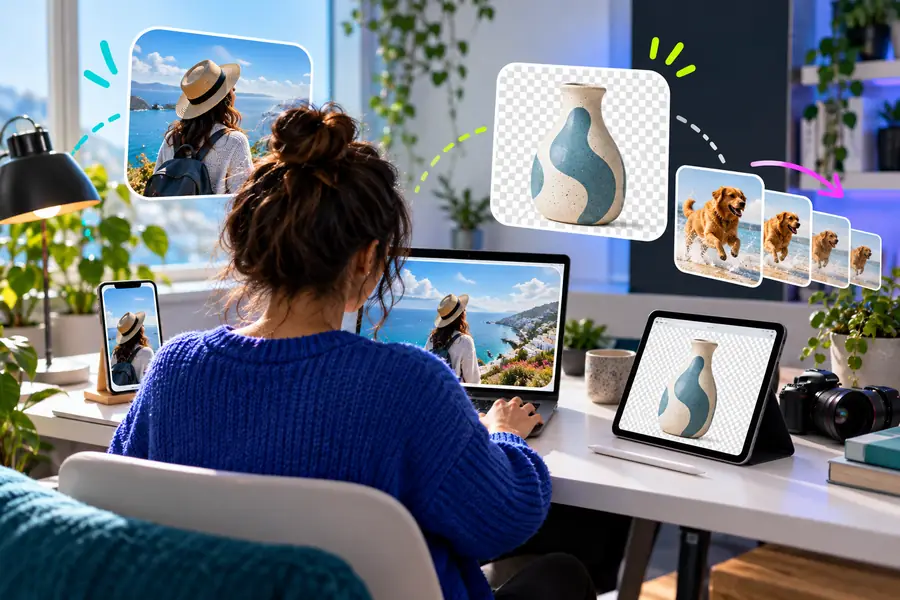
Good editing serves a clear purpose; it does not simply add effects.
BeforeAfterTry the next step
Once you know the change you need, the best workflow is usually the one that keeps the task focused. Start with the source image, describe the intended result, and review the output before using it.
Common questions
It is software that lets you alter an image using controls for tasks such as cropping, resizing, color adjustment, cleanup, text, or composition. The exact capabilities depend on the specific app and the file types it supports.
Common uses include improving a photo, changing its dimensions, preparing an image for a website or social post, adding text, and making simple corrections. More advanced tools may also support layers, masking, detailed retouching, or automated assistance.
Not always. An editor may focus on changing existing images, while a design program may emphasize layouts, typography, reusable components, and creating compositions from many elements. Some products combine both categories, so the feature set matters more than the label.
Yes, when the goal is a focused change and the controls are understandable. Beginners should start with a copy of the original, make one change at a time, and review the result at the size and context where it will be used.
Avoid relying on one when you need guaranteed recovery of lost detail, complex brand systems, professional print preparation, or highly controlled multi-layer production and the app does not support those requirements. In those cases, choose a workflow whose capabilities match the quality and control you need.