Text on images
Edit words directly with an image text editor online
An image text editor online helps you treat wording as part of the visual, not as an afterthought. Start with a source image, make the copy readable, and check the result at its final size.
- image editor ai Use AI-assisted changes when the wording is only one part of a larger visual edit.
- google photo editor background Explore background-focused edits when the scene behind your text needs more attention.
- image editor online See the broader online editing workflow for crops, color adjustments, and visual cleanup.
Prerequisites
Before changing text, gather the source image, the exact wording, and a clear idea of where the message should sit.
-
1
Choose the source
Use the image that will actually be published, because its crop, contrast, and available empty space affect every text decision.
-
2
Prepare the copy
Write the final headline, label, caption, or call to action first. Shorter wording is easier to place and easier to read.
-
3
Set the visual goal
Decide whether the text should blend into the composition, stand out as a label, or guide attention to one part of the image.
- Start from the image that will be used in the final context
- 1 source
- Review wording and placement together instead of separately
- 1 copy pass
- Confirm the text remains readable against its background
- 1 contrast check
One Full Run-Through
A practical text edit is easiest to judge as a before-and-after: first identify the visual problem, then check whether the wording solves it without overpowering the image.
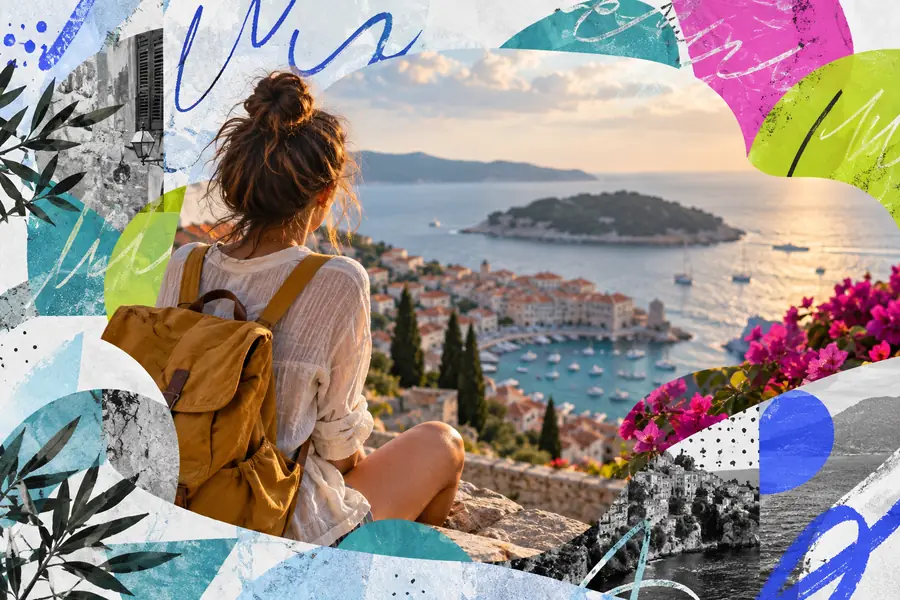
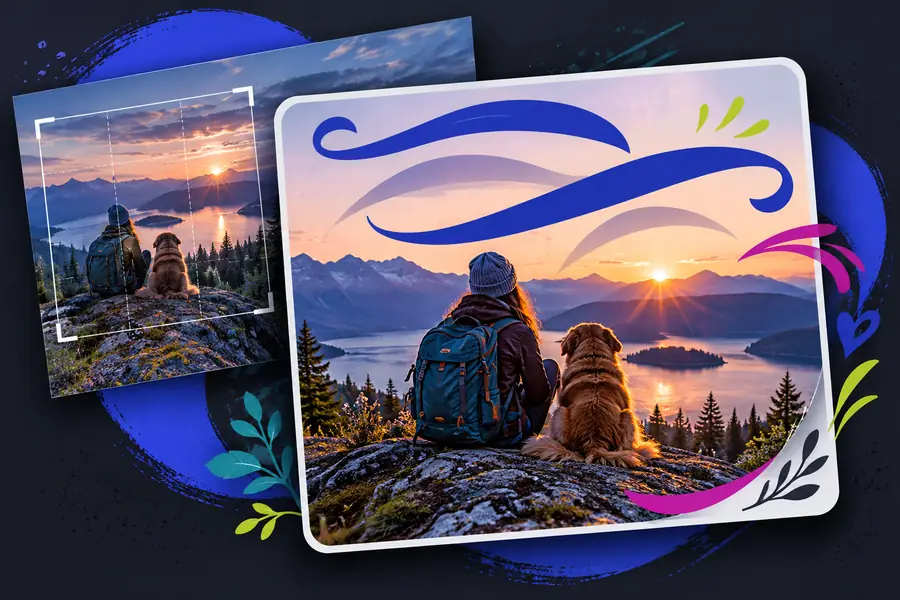
Compare readability, placement, and emphasis at the same viewing size.
Before: lost in the imageAfter: clear and balancedOptions Table
The right text treatment depends on what the image needs. Use this comparison to choose between a direct text edit and a more general image adjustment.
| Direct text edit | General image adjustment | |
|---|---|---|
| Primary goal | Change wording, placement, scale, or emphasis | Improve the image overall without focusing on copy |
| Best starting point | A finished image with a clear message to add or revise | A photo that needs broader visual cleanup first |
| Main decision | How the words should read and where they should sit | How the image should look, crop, or feel |
| Typical risk | Text becomes hard to read over detail or low contrast | The image improves but the message remains unclear |
| Useful check | Read the words at the size and distance viewers will use | Check composition, color, and subject emphasis |
| When to choose it | The copy is central to the image's purpose | The image itself needs attention before text is added |
What Fails
Text edits usually fail for ordinary visual reasons: the copy is too long, the background is too busy, the type is too small, or the placement competes with the subject. A polished result is not only about adding words; it is about preserving hierarchy. If the message disappears at thumbnail size, simplify it. If the image already has strong detail, move the text into quieter space or improve contrast. If the wording keeps changing, finish the copy before refining the layout.
- Shorten copy before adding decorative treatment
- Test readability against the actual image detail
- Check the final composition at both full size and thumbnail size
FAQ
It is a browser-based way to add or revise words directly within an image composition. The work can include changing wording, positioning text, adjusting emphasis, and checking how the message reads against the background.
Yes, but readability depends on placement, contrast, size, and the amount of detail behind the words. Start with shorter copy, use quieter areas of the image when possible, and review the result at the size people will actually see.
Common choices include headlines, captions, labels, announcements, calls to action, and short social posts. The best choice depends on the image's purpose and how much space remains for the message.
The editor may show the image larger than its published version, making small type appear more readable than it really is. Check the design at its intended display size and simplify the wording or strengthen contrast if the message fades.