Mobile workflow

Choose an image editor alternative for android

An image editor alternative for android can help when your usual mobile app feels too limited for a specific task. Use this guide to decide what belongs on your phone and what is better handed off to a broader editing workspace.

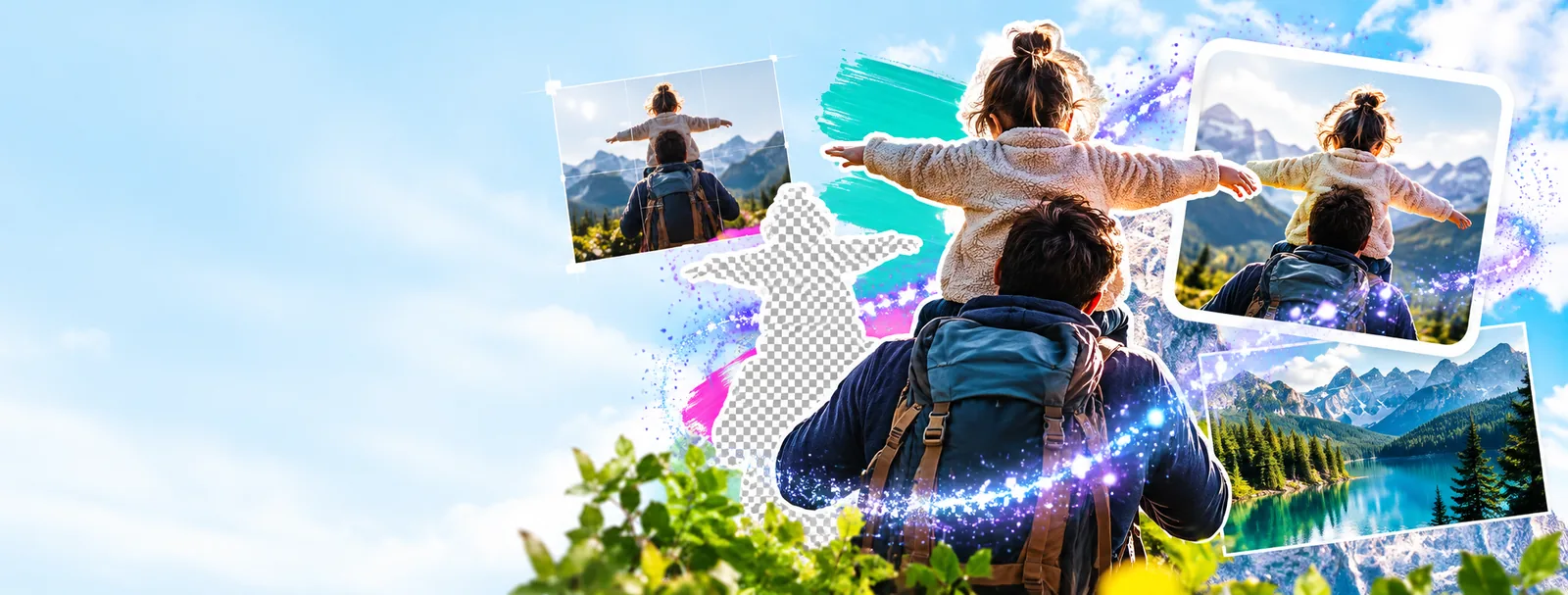
Image editing workspace shown as a hero visual

Set expectations

What the mobile route cannot do

An Android-friendly workflow is convenient, but it should not be confused with a complete replacement for every desktop or specialist editing setup.

1

It cannot guarantee native Android controls

This page describes a practical route to image editing, not a promise that every tool behaves like a purpose-built Android application.

What to do instead

Check the handoff experience on your device before making it part of a daily production workflow.

2

It cannot replace a large-screen retouching setup

Precise masking, layered composition, and detailed color work become harder when the screen and touch controls are limited.

What to do instead

Move demanding edits to a larger browser or desktop workspace and keep Android for capture, review, and quick changes.

3

It cannot recover missing source quality

Editing can adjust an available image, but it cannot reliably recreate detail that was never captured or was heavily compressed.

What to do instead

Keep the original camera file and export a separate mobile-ready copy.

4

It cannot make every export decision for you

The right format, dimensions, and compression depend on whether the image is headed to print, a website, messaging, or social media.

What to do instead

Decide the destination first, then check the final image at its intended size before sharing.

Simple handoff

Where we slot in

The cleanest Android workflow separates capture from refinement without forcing every image through a complicated process.

  1. 1

    Bring in the source image

    Choose the original or highest-quality copy available from your phone, cloud folder, camera transfer, or message thread.

  2. 2

    Make the focused change

    Crop, adjust, add text, refine the background, or prepare the image for its next destination instead of editing everything at once.

  3. 3

    Review and hand off

    Check the result at a useful viewing size, preserve the original, and send the edited copy to the channel or larger workspace where it belongs.

Workflow preview

Before and after

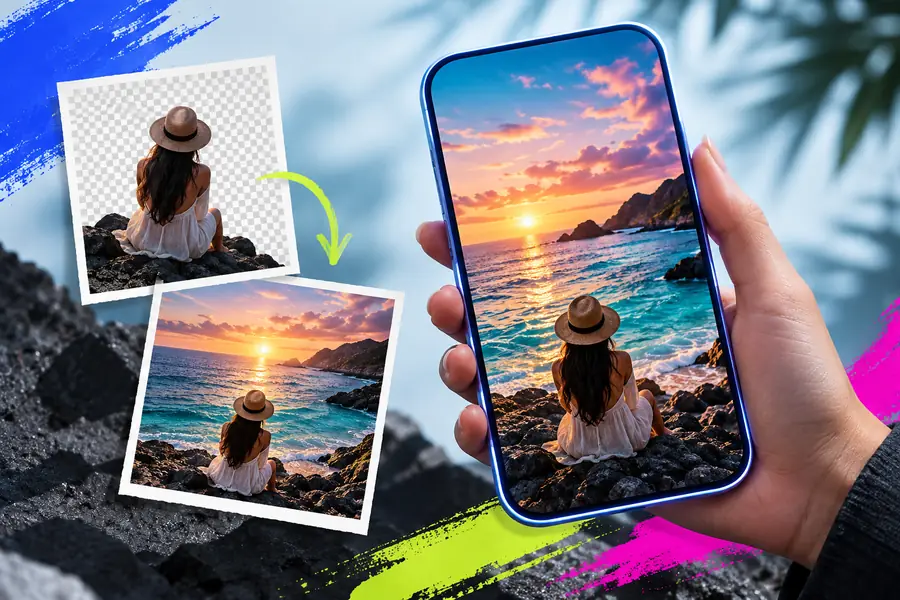
The useful difference is not just a stronger-looking picture; it is a file that is clearer about where it goes next.

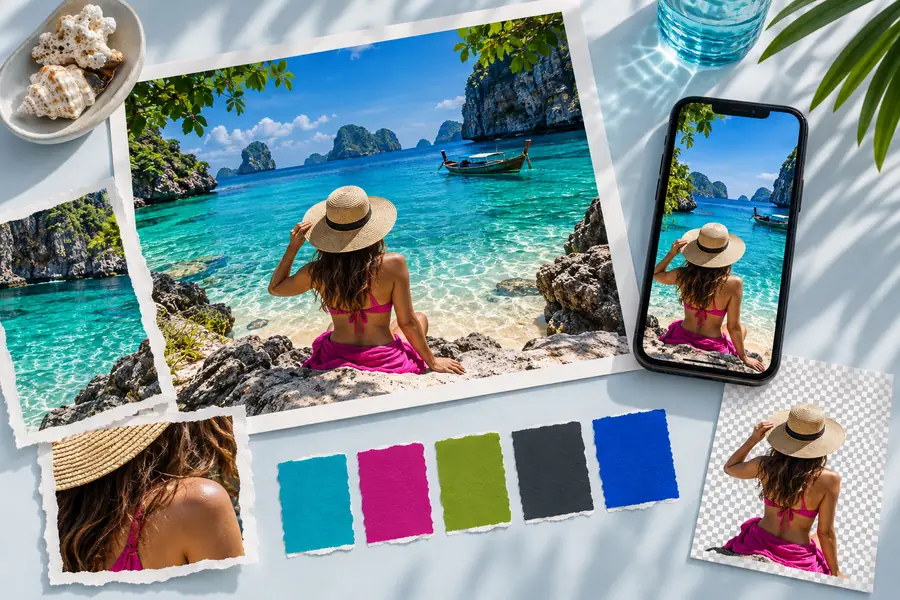
A source image prepared for mobile editing
Source on Android
An edited image shown in an image editing workspace
Prepared for handoff

Keep the original, then export a separate working copy for the next channel.

Source on AndroidPrepared for handoff

Decision table

Deliverable spec

Use this comparison to decide whether the phone should finish the job or simply begin it.

Android-first workflow Larger editing workspace
Best starting point Photos captured, received, or reviewed on a phone Images already organized for a focused production task
Typical edit size Quick crops, tonal adjustments, text changes, and review Detailed retouching, layered work, and precise selections
Control surface Touch-first controls with limited screen area Larger canvas with more room for inspection and adjustment
File handling Convenient for selecting and sharing a working copy Better suited to deliberate versioning and destination-specific exports
Best handoff Messaging, social posting, cloud storage, or later editing Website, presentation, print, archive, or team review
Main risk Small previews can hide crop, text, or compression problems A more involved workflow can slow down a simple mobile task

Audience fit

Who this route serves

The right image editor alternative for android depends less on a feature checklist than on where the image starts and where it needs to finish.

The mobile marketer

You capture a product or event image on Android and need a clean crop, readable text, and a shareable version before the next post.

Keep the quick edit on mobile, then use a larger workspace when the campaign needs several sizes or precise layout work.

free image editor for pc

The small business owner

You receive customer photos through messages and need to prepare a consistent image for a listing, update, or announcement.

Use the phone for intake and review while preserving the original for later improvements or alternate exports.

free image editor for pc

The traveling photographer

You want to review a recent shot, make a restrained adjustment, and send a preview without carrying a full desktop workflow everywhere.

Android handles selection and communication; a larger editor remains available for careful finishing and archive-ready work.

free image editor for pc

The student or creator

You need to add a title, crop a visual, or prepare an image for a slide, post, or shared project from the device already in your hand.

A short mobile pass reduces friction, while a desktop route gives you more room when the project becomes more demanding.

free image editor for pc

Next step

Make the next edit fit the device

Use Image Editor as a practical starting point for mobile image work, then hand off only the tasks that genuinely need more space or control. Keep the source file, make the purpose of the export clear, and choose the simplest route that protects the final result.

  • Start with the highest-quality source available
  • Separate quick mobile edits from detailed finishing
  • Review the final copy at its intended destination
Open Image Editor

Scenario FAQ

Scenario FAQ

These answers focus on choosing an image editor alternative for android without assuming that one workflow fits every phone, file, or destination.

The best option depends on the edit and the destination. A mobile-first route is useful for cropping, review, text, and quick adjustments, while a larger workspace is usually better for detailed selections, layered work, and careful export checks.

For many everyday edits, a phone can be enough if the source image is suitable and the destination does not require extensive finishing. Keep the original file and inspect the result at the size where it will actually be shared or published.

It can be practical when the browser experience, connection, and screen size suit the task. Test one representative image first, especially if you need precise controls or are working with a file that should not be accidentally overwritten.

Use Android when speed, access, and simple changes matter most. Move the work to a PC when you need a larger canvas, more precise control, multiple versions, or a destination-specific export that deserves close inspection.

Start editing
Start editing