Casual photo sharer
You need to crop a screenshot, brighten a snapshot, or make a small correction before sending it.
Start with the familiar library editor and keep the workflow short.
Google Photos guide
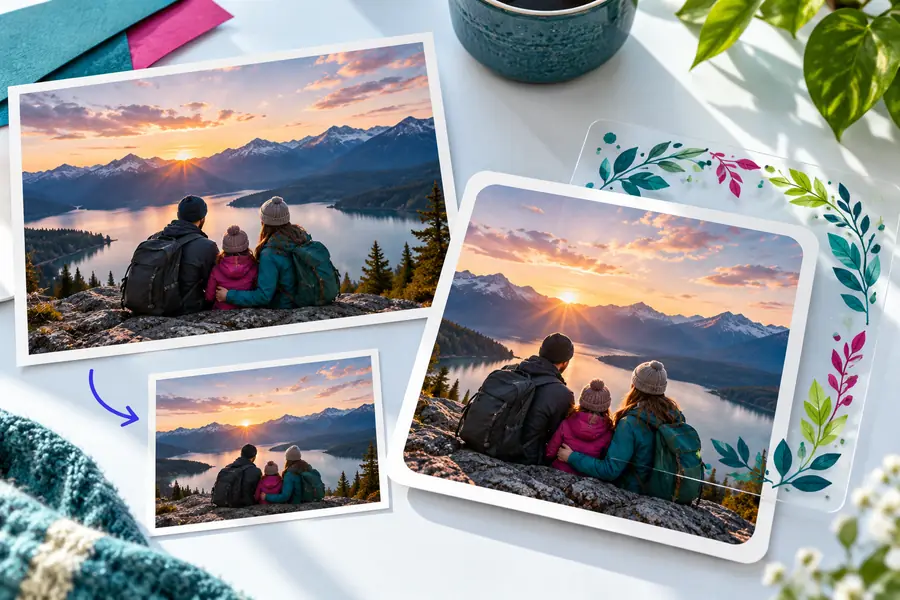
Google photo editor free features are useful for quick corrections, cropping, filters, and sharing-ready images. This guide shows the practical path from opening a picture to checking the result, with a clear fallback when the built-in tools are not enough.
Related tools
Before editing, decide where the photo lives, what result you need, and whether a built-in editor or a broader workflow is the better fit.
Practical workflow
The exact labels can vary by device and account, but the editing sequence is easy to recognize across the Google Photos experience.
Select the photo in Google Photos and confirm that you are working from the original or a saved copy before changing it.
Open Edit, then start with a crop or adjustment that addresses the main problem instead of applying several filters at once.
Compare the result with the original, undo anything that weakens the image, and save a copy when you want to preserve both versions.
At a glance
Google Photos is convenient for familiar, low-friction edits. Image Editor is the more flexible route when you want to describe an intended result and continue beyond library-based adjustments.
| Google Photos editor | Image Editor workflow | |
|---|---|---|
| Starting point | A photo already stored in Google Photos | An image and a described editing goal |
| Best for | Quick crops, light corrections, and simple enhancements | A guided edit when the desired result needs more explanation |
| Access pattern | Open a selected image in the Google Photos interface | Hand off an editing request through the provided workflow |
| Editing style | Choose from available controls and presets | Describe the change you want and review the resulting image |
| Original preservation | Use a copy or undo option when available | Keep the source file separately before starting |
| Main limitation | The available controls depend on the Google Photos experience you are using | The result depends on how clearly the request describes the image and desired change |
| Good handoff moment | When the fix is small and familiar | When the edit involves several changes or a specific visual direction |
Quality check
A quick editor is not a substitute for reviewing the image carefully. These are the most common points where a seemingly successful edit falls short.
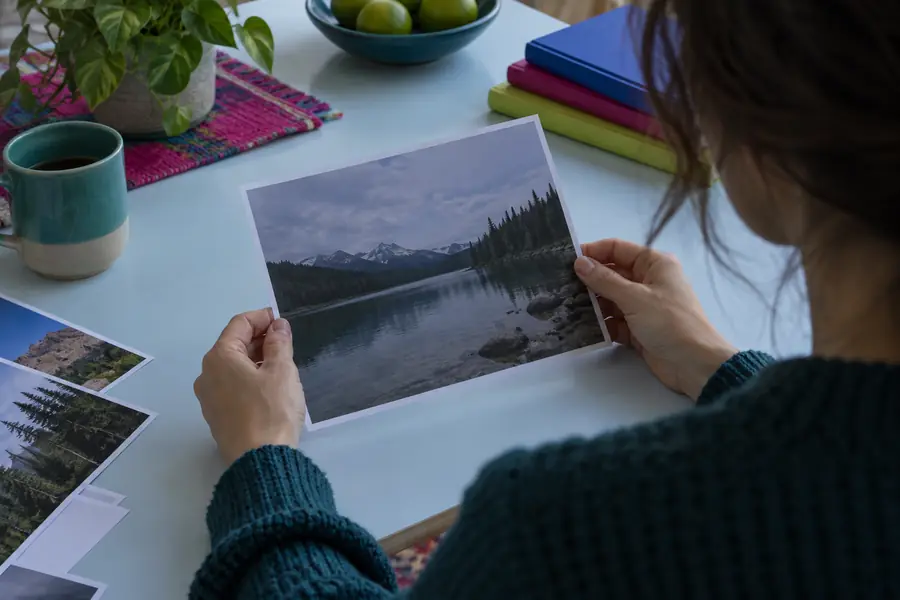
Check skin tones, edges, and fine detail at full size before sharing.
BeforeAfterChoose your route
The right editor depends on the person, the device, and how specific the requested change is.
You need to crop a screenshot, brighten a snapshot, or make a small correction before sending it.
Start with the familiar library editor and keep the workflow short.
Your photos are organized around Windows tools and you want to compare a native editing path.
Review the Microsoft-oriented option before choosing a separate workflow.
You make most edits on a mobile device and want controls close to the camera roll.
An app-centered approach may feel more natural for repeated quick edits.
The image needs a distracting object removed or a scene changed rather than simply adjusted.
Use a background-focused workflow when the subject and surroundings need different treatment.
Next edit
Keep the original, describe the change you want, and use the editing workflow that matches the job. For a simple correction, Google Photos may be enough; for a more directed result, pass the task to Image Editor.
Common questions
Google Photos includes photo editing tools that can be used within the service, but the exact features available can vary by device, account, and current Google offering. Check the controls shown on your own photo to confirm what is available.
Open a photo in Google Photos, select the Edit option, choose a crop, adjustment, or filter, and review the result. Save a copy when you want to keep the original unchanged.
Some Google Photos experiences may offer more advanced editing controls, but availability is not identical everywhere. If the tool does not show the correction you need, use a workflow designed for a more specific edit.
It is practical for quick corrections, organization-linked edits, and sharing-ready images. Photographers who need repeatable control, detailed retouching, or a larger production workflow may need a more specialized editor.