Browser-based editing
Use an Image Editor Online for Everyday Changes
An image editor online can be a convenient starting point for a crop, a color adjustment, or a cleaner background. Describe the change you want, then inspect the result closely before using it elsewhere.

How a browser editing session works
A useful workflow separates the request, the review, and the final file. That makes it easier to catch an edit that looks good at first glance but fails at full size.
-
1
Start with a clear source
Choose an image you have permission to edit. Check its dimensions and keep the original untouched so you can compare details or return to it later.
-
2
Specify one visible change
Describe the crop, lighting, color, or background you want. A narrow instruction gives you a clearer basis for judging the result than a vague request to make the picture better.
-
3
Review before you use it
Look at edges, faces, text, and small objects at full size. If the edit changes something important, revise the instruction or use a tool with more precise manual controls.
Pick a surface that fits the job
An image editor is only useful if its workflow suits the change you need. These related guides separate device preference from specific editing tasks.
- image editor app Compare an app-based workflow with editing in a browser when your photos live on a phone.
- AI-assisted image editing Explore when a written change request is more useful than adjusting an image by hand.
- editing image text online Consider the extra care needed when an edit involves readable words inside a picture.
Where browser editing has limits
Being online does not guarantee that every image editor offers the same controls, accepts the same files, or preserves every detail of a source image.
It cannot guarantee exact text
Small lettering, logos, labels, and interface screenshots may become distorted during an image-changing edit. Check every character rather than judging only the overall composition.
What to do instead
For essential copy, add or correct the text in a tool with direct text controls.
It cannot promise a particular export
File types, dimensions, and download options depend on the destination service. Do not assume that a browser workflow will deliver a layered file or your preferred format.
What to do instead
Check the available output before committing to a workflow, especially for print or handoff.
It cannot replace careful source handling
An online workflow involves sending information to a service. This page does not establish that a destination is appropriate for confidential, client-owned, or regulated images.
What to do instead
Read the destination's current privacy terms and use an approved local workflow for sensitive material.
Browser editor or desktop software?
The better choice depends on the file you need to deliver, not just where you prefer to work. Use this comparison as a checklist; capabilities vary by product.
| Browser-based image editor | Desktop image editor | |
|---|---|---|
| Starting point | Open a web destination and follow its available workflow. | Install or open software on a supported computer. |
| Connection | Typically depends on internet access for the editing service. | Some tools support work without a connection; requirements vary. |
| Source files | Check accepted file types and upload rules before sending an image. | Check local import support, especially for camera-specific files. |
| Precise corrections | Available manual controls differ widely between services. | Often suited to detailed selections and repeatable adjustments. |
| Project handoff | Confirm whether the service provides the export your recipient needs. | May offer editable project files, depending on the software. |
| Sensitive images | Review the service's current handling terms before upload. | A local workflow may be preferable when files must remain on an approved device. |
What to inspect in a visual comparison
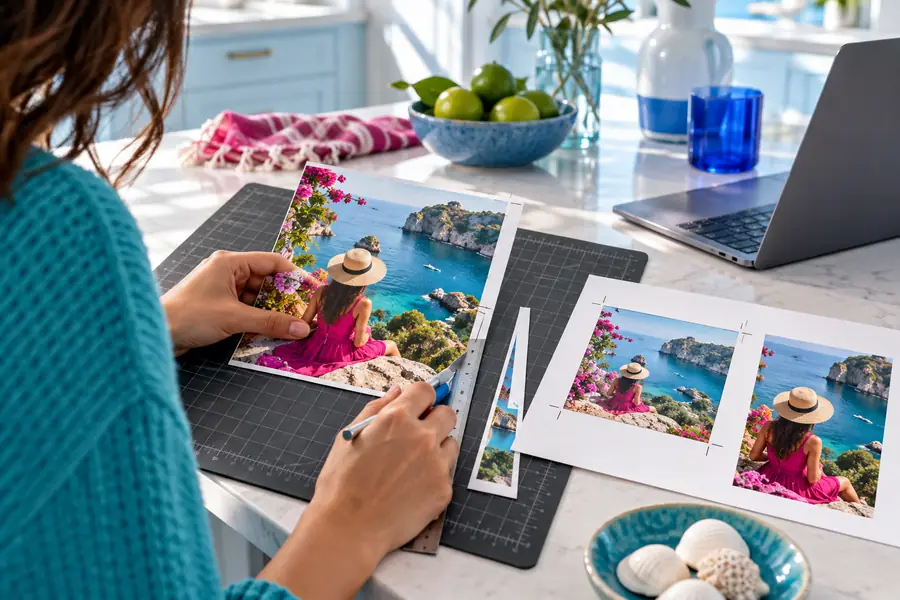
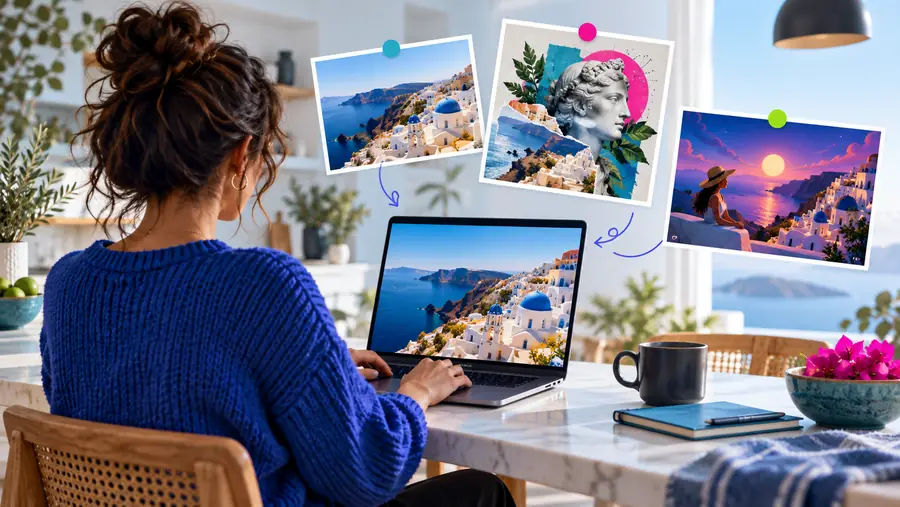
These are separate illustrative editing examples, not a verified before-and-after of one source photo. For your own edit, compare the original and result at the same size, then inspect subject edges, color, and any visible text.
Crop exampleColor exampleTake a specific edit into the next step
Describe the result you want and bring a source image you are permitted to use. Image Editor links to the editing destination; its available controls, file support, and output options should be checked there before you rely on the result.
Start with one change you can evaluate
- Keep your original image
- Inspect the result at full size
- Confirm the export meets your needs
Questions about editing images in a browser
Common goals include cropping a photo, adjusting its appearance, or changing part of its background. The exact operations depend on the service you open, so check its controls before planning a detailed edit.
A browser-based service generally does not require a separate desktop editor for its web workflow. It may still have device, browser, connection, or account requirements, which you should verify at the destination.
It can, depending on the source, the changes made, and the available export settings. Compare the result with the original at full size and check the downloaded file's dimensions before publishing or printing.
No single format list applies to every service. Check supported inputs before uploading, particularly if you have a camera RAW file, an animated image, or a layered project.
Treat an upload as a decision about where that image may be processed or stored. Review the destination's current terms and your client's requirements; use an approved local tool if the image must not be sent to an external service.