Begin with confidence
A hands-on image editor tutorial for beginners
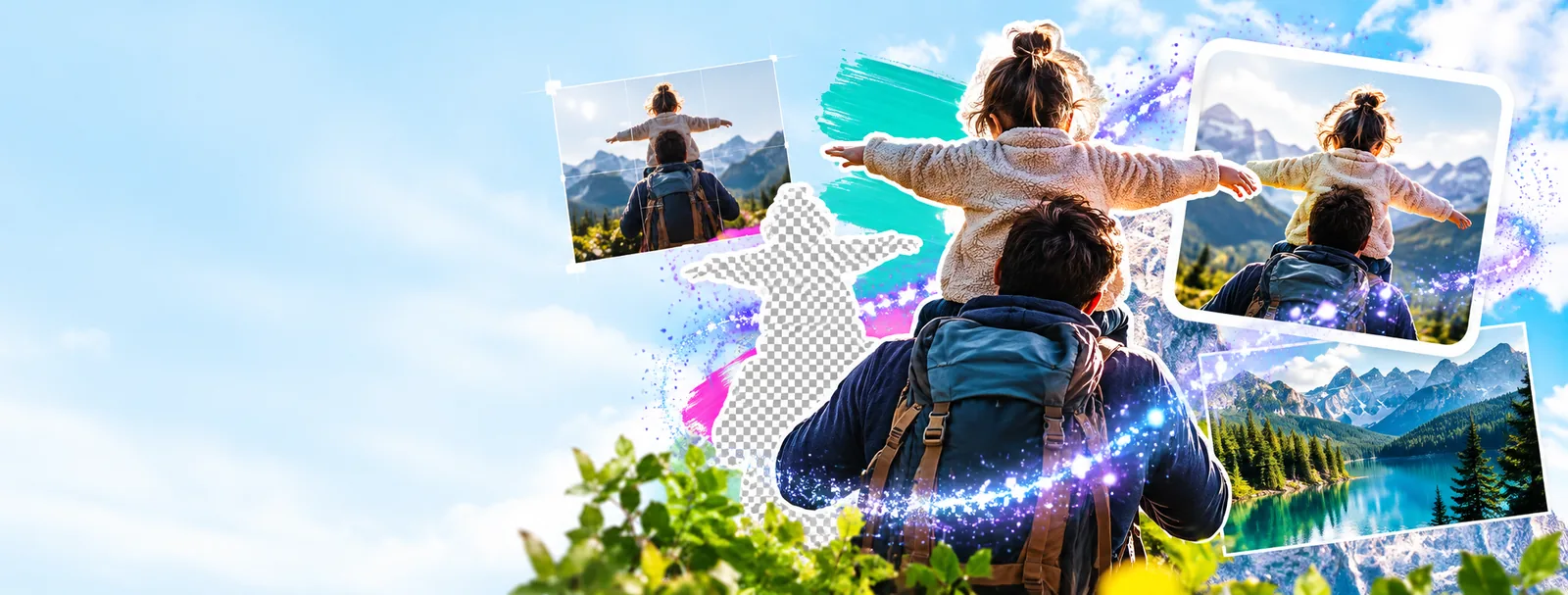
This image editor tutorial for beginners gives you a simple path from an untouched picture to a polished result. Learn the essential controls in the right order, then practise with your own image.
Prerequisites
A little preparation makes each edit easier to judge. Start with a suitable source image, a clear goal, and a copy that protects the original.
- how to use image editor online free Use this companion guide when you want a browser-based workflow from upload through export.
- best photo editing software for beginners Compare beginner-friendly editing choices when you are still deciding which type of tool fits you.
- image text editor online Follow a focused route when your main task is placing readable, well-aligned text on an image.
Numbered steps
Work from broad corrections to small details. This order keeps later decisions from being undone by an earlier crop, exposure change, or text placement.
-
1
Open and inspect the image
Choose a clear source image, zoom out until you can see the full frame, and identify the subject, distracting edges, uneven lighting, or empty space. Decide what the finished image needs before touching a slider.
-
2
Make the foundational adjustments
Correct orientation and crop first. Then adjust brightness, contrast, highlights, and shadows in small movements. Pause after each change and compare the result with the original so the image does not become harsh or flat.
-
3
Refine, add text, and export
Remove minor distractions only when they compete with the subject. Add text after the image is balanced, check spelling and contrast, then export a copy in the format and size suited to its destination.
Common errors and fixes
Most beginner mistakes are not caused by missing tools. They come from making a large change too early, judging the image at one zoom level, or forgetting where the final file will be used.
| Common mistake | Practical fix | |
|---|---|---|
| The image looks too dark after editing | Increase brightness or exposure dramatically, which can wash out light areas. | Raise the adjustment gradually, then bring back detail with highlights and shadows. |
| The crop cuts off an important subject | Drag the crop boundary until the composition feels tight without checking the full frame. | Zoom out before confirming and leave a small visual buffer around the main subject. |
| Colours look unnatural | Push saturation because the preview seems more vivid at first glance. | Reduce saturation, inspect neutral areas, and favour believable skin tones and surfaces. |
| Text is hard to read | Use a thin font or place text over a busy area with little contrast. | Choose a clear weight, add spacing, and position the text over calmer visual detail. |
| The edit feels overprocessed | Apply several filters or strong sharpening to make the result look finished. | Undo the last change, compare with the original, and keep only adjustments that solve a visible problem. |
| The exported file is unsuitable | Save the first available version without checking its use or destination. | Choose dimensions, quality, and file type for the place where the image will be shared or stored. |
Advanced tips
Once the basic workflow feels comfortable, use these reference points to make decisions more consistently instead of chasing a dramatic preview.
- Start with a level horizon when straightening a landscape, room, or product photo.
- 0 °
- Inspect important edges and fine text at full scale before exporting.
- 100 %
- Use a square check when the image is intended for a profile picture or square post.
- 1:1 crop
- Keep one untouched original and one working copy so experiments remain reversible.
- 2 copies
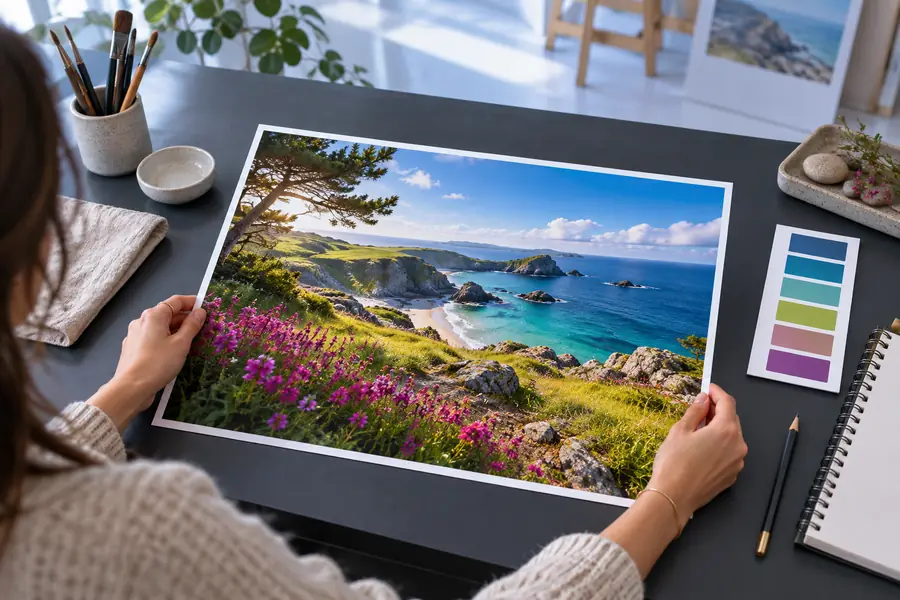
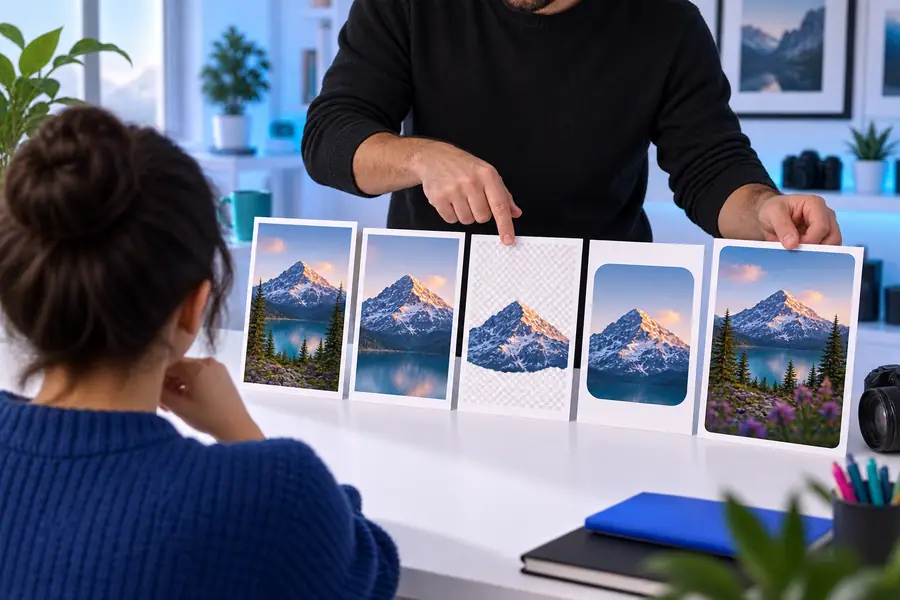
Compare the overall balance first, then inspect details. A successful edit usually looks intentional rather than heavily filtered.
Before the first passAfter a careful passYou do not need to master every control before making a useful edit. Open an image, identify one visible problem, make one measured correction, and compare the result before moving on. The same habit works for portraits, screenshots, product images, and social graphics.
Put the workflow into practice
- Protect the original before experimenting
- Correct composition before decoration
- Export a version suited to its destination
Tutorial FAQ
Start with opening, zooming, cropping, rotating, and undoing changes. These controls help you frame the image and recover from mistakes before you move into colour, retouching, or text.
Inspect the image, correct orientation, crop the frame, adjust brightness and contrast, refine colour, and add text or small details last. Export only after checking the full image and important edges.
Make small changes and compare each one with the original. If a filter, saturation boost, or sharpening effect becomes the first thing you notice, reduce it or undo it.
It is safer to keep the original unchanged and work on a duplicate. This gives you a clean reference and lets you return to the source if a crop, adjustment, or export choice goes wrong.
Choose the format based on the destination rather than habit. Use a format that preserves the detail you need for the intended use, and check the exported copy instead of assuming it matches the editor preview.